
You sit down at your desk, open your laptop, and start working. A few hours later, your neck is stiff, your lower back is quietly protesting, and your eyes feel like they’ve been staring into a lightbulb. Sound familiar?
Most people assume this is just part of desk life. It isn’t.
The truth is, a handful of small changes to your desk — things that take minutes, not money — can completely change how you feel at the end of a workday. No standing desk required. No ergonomic consultant. Just a few smart adjustments that your body will thank you for.
Here’s everything you need to know.
Why Small Desk Changes Actually Matter
There’s a tendency to think that discomfort at a desk is a «big problem» that needs a «big solution.» A new chair. A fancy monitor arm. A $500 keyboard.
But most of the damage isn’t done in one dramatic moment. It builds slowly, hour by hour, from small misalignments you barely notice. Your screen is two inches too low. Your mouse is a little too far away. Your feet don’t quite reach the floor. On their own, none of these things feel serious. Together, over time, they create real tension in your neck, shoulders, and back.
The good news: the same principle works in reverse. Small corrections, applied consistently, add up fast.
According to the Cornell University Ergonomics Web, the majority of office-related discomfort comes from sustained awkward postures — not from any single event. That means fixing your posture at your desk doesn’t require a dramatic overhaul. It requires getting the basics right.
Let’s go through each one.
1. Raise Your Screen to Eye Level
The Problem
If you’re working on a laptop or a monitor that sits flat on your desk, your head is almost certainly tilting downward for hours at a stretch. That forward head position puts a surprising amount of stress on your cervical spine — some estimates put it at the equivalent of carrying a significant weight just from the angle alone.
The result: neck stiffness, tension headaches, and that familiar ache between the shoulder blades.
Why It Happens
Laptops were designed for portability, not for extended use. A flat screen naturally sits below comfortable eye level, so you compensate by dropping your chin — which pulls your whole upper body forward.
The Fix
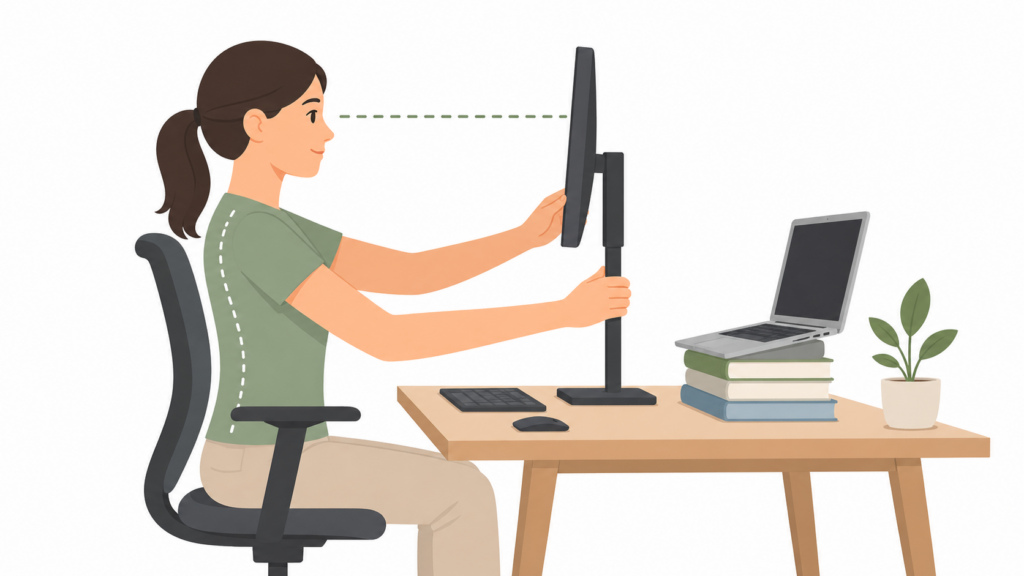
Your screen should be positioned so that the top third of the display is at eye level when you’re sitting upright. You shouldn’t need to tilt your head to see it clearly.
For laptops:
- Stack books, a ream of paper, or a sturdy box under it until the height feels right
- Pair this with an external keyboard so your hands aren’t raised uncomfortably
For desktop monitors:
- Adjust the monitor stand, or place something stable underneath it
- Position it roughly an arm’s length away from your face
Immediate benefit: Reduced neck tension within the first day. Seriously — this is one of the fastest-feeling wins in any desk setup.
2. Bring Your Keyboard and Mouse Closer
The Problem
Reaching forward to type — even slightly — engages the muscles in your shoulders and upper arms in a way they’re not designed to sustain. Add a mouse that sits too far to the right, and you’ve created a slow-burning tension pattern across one side of your upper body.
Why It Happens
People often push their keyboard toward the back of the desk to «create space» at the front. Makes sense visually. Doesn’t make sense physically.
The Fix
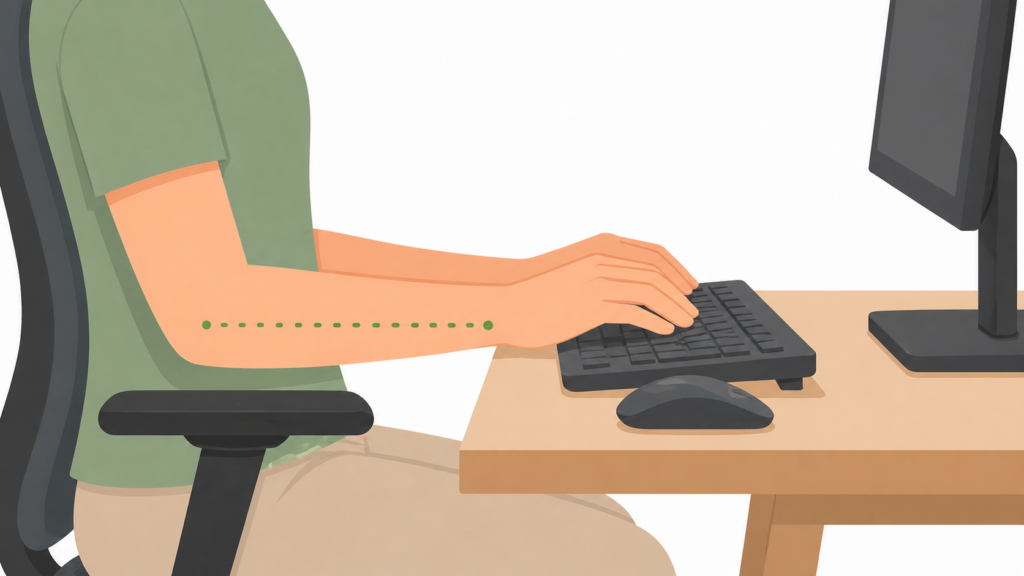
Pull your keyboard close enough that your elbows rest near your sides when typing — not stretched out in front of you. Your forearms should be roughly parallel to the floor, or angled very slightly downward.
Your mouse should be right next to the keyboard, at the same height. If it’s noticeably further away, or sitting on a surface that forces your arm up, that’s worth fixing.
A few quick tests:
- When you place your hands on the keyboard, are your shoulders relaxed or slightly raised?
- Is your elbow bent at roughly a 90–100 degree angle?
- Can you reach the mouse without shifting in your chair?
If the answer to any of those is «no,» adjust.
Immediate benefit: Less shoulder fatigue during long typing sessions, and a noticeable reduction in wrist strain over time.
3. Fix Your Chair Height (And What to Do About Your Feet)
The Problem
Chair height is one of those things people set once when they first get the chair and never touch again. But it’s arguably the most important setting for desk ergonomics and improving posture at your desk.
Sitting too high forces your feet to dangle, which cuts off circulation in your thighs. Sitting too low raises your knees above your hips, which rounds the lower back and creates a cascade of compression issues down the spine.
Why It Happens
Most adjustable chairs have their height set by whoever used them last, or default to a position that looks «normal» rather than one that’s correct for your specific height.
The Fix
Adjust your chair so that:
- Your feet rest flat on the floor (or on a footrest if the floor is too far down)
- Your knees are at roughly hip height — not above, not well below
- Your thighs are roughly parallel to the floor, with a little clearance between the seat edge and the back of your knees
If your desk is too high once you’ve set your chair correctly, a keyboard tray or desk riser can help. But in many cases, just getting the chair height right resolves a surprising amount of discomfort.
Immediate benefit: Better circulation in the legs, less lower-back rounding, and a more stable base for the rest of your posture.
4. Add Lumbar Support (Even If You Don’t Have a Fancy Chair)
The Problem
The lower back has a natural inward curve. Most chairs — even decent ones — don’t support this curve properly, which means your lumbar spine gradually flattens and rounds as the hours pass. That’s the source of that dull, heavy ache in the lower back that so many desk workers know well.
Why It Happens
Without something filling the gap between your lower back and the chair, your muscles have to work constantly to maintain any kind of upright posture. They tire, you slump, and the chair back ends up doing nothing useful.
The Fix
You don’t need a specialized lumbar cushion, though those work well. A rolled-up towel or a small pillow placed in the curve of your lower back does the same job.
Position it so it sits just above the beltline — not up at your mid-back, and not so low that it’s under your tailbone. You want it filling the natural hollow of the lumbar curve.
Key signs it’s working:
- You can sit upright without actively bracing your core
- The small of your back feels supported, not pushed forward
- You’re not slumping within 20 minutes
Immediate benefit: Reduced lower back fatigue, especially during long meetings or focused work sessions.
5. Take Movement Breaks — And Make Them Non-Negotiable
The Problem
No desk setup, however perfect, eliminates the problem of staying still for too long. The human body is designed to move. Sustained sitting — regardless of your posture — reduces circulation, tightens the hip flexors, and gradually drains your energy and focus.
Why It Happens
When you’re in flow, it’s easy to sit for two or three hours without looking up. Work demands it, sometimes. But the longer you stay still, the worse your posture tends to get, and the more fatigued you feel by mid-afternoon.
The Fix
Set a reminder every 45–60 minutes to get up for two to three minutes. That’s it.
You don’t need to do a full stretching routine (though that doesn’t hurt). Even standing up, walking to get a glass of water, and rolling your shoulders back a few times is enough to reset.
A few habits that make this easier:
- Keep your water glass on the other side of the room
- Use a phone timer or a browser extension as a standing reminder
- Do a few shoulder rolls and a gentle neck stretch before sitting back down
The American Heart Association recommends breaking up long periods of sitting throughout the day as part of basic cardiovascular health — and the effect on mental focus is equally real.
Immediate benefit: More sustained energy in the afternoon, less stiffness at the end of the day.
6. Sort Out Your Lighting
The Problem
Bad lighting at a desk creates two distinct problems. The first is eye strain — squinting at a screen in a dim room, or fighting glare from a bright window, forces your eyes to work harder than they should. The second is subtler: inconsistent light and screen brightness can contribute to tension headaches and mental fatigue over a full workday.
Why It Happens
Most people set up their desk wherever there’s a free surface — without thinking much about where windows are, or whether the overhead light creates glare on their screen.
The Fix
A few adjustments that cost almost nothing:
For screen glare:
- Position your monitor so windows are to the side — not directly behind or in front of you
- Use your screen’s brightness setting to match the ambient light in the room (your screen shouldn’t feel like the only light source)
For general room lighting:
- Add a desk lamp if overhead lighting feels harsh or inconsistent
- Warm-toned bulbs (around 2700–3000K) tend to be easier on the eyes than cool, blue-white light during evening work sessions
For screen eye strain:
- Most phones and computers have a «Night Mode» or «Night Shift» setting that reduces blue light after a certain hour — worth enabling
- The 20-20-20 rule is simple and effective: every 20 minutes, look at something 20 feet away for 20 seconds
Immediate benefit: Less eye fatigue during the afternoon slump, and fewer tension headaches from squinting or screen glare.
Why Small Changes Beat Expensive Setups
There’s a whole industry built around selling the perfect ergonomic workspace. Thousand-dollar chairs, motorized desks, precision monitor arms. And some of those things are genuinely useful — especially for people with chronic or serious discomfort.
But here’s what the research consistently shows: most ergonomic problems are caused by poor habits and minor misalignments, not by inferior equipment.
A $1,200 chair used poorly outperforms a $200 chair set up correctly. The adjustments in this article — screen height, keyboard position, lumbar support, movement breaks, lighting — address the root causes of most desk-related discomfort. And they’re free, or close to it.
There’s also a psychological angle worth acknowledging. Big purchases feel like solutions. But because they don’t change behavior, they often don’t change outcomes. A footrest made from a shoebox works exactly as well as a $60 foam one. What matters is that your feet are supported.
Start with the basics. Get those right. Then, if you still have specific problems, consider targeted upgrades.
Quick Wins: Your Desk Checklist
Run through this before your next workday:
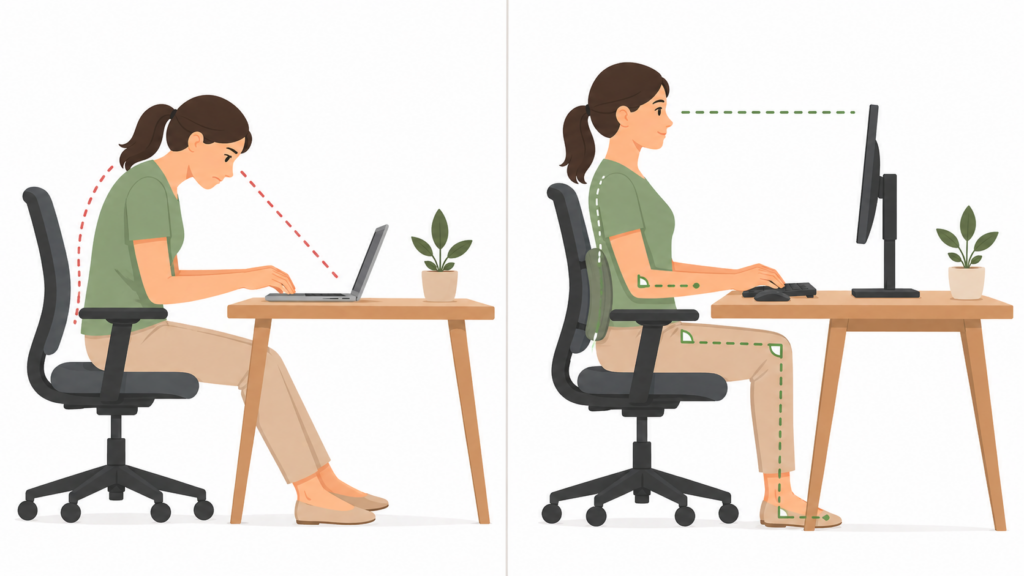
- Screen height: Top third of display at eye level; about an arm’s length away
- Keyboard position: Close enough that elbows rest near your sides when typing
- Mouse placement: Right next to the keyboard, not reaching across the desk
- Chair height: Feet flat on the floor, knees roughly at hip height
- Lumbar support: Small pillow or rolled towel in the hollow of your lower back
- Movement: Timer set for every 45–60 minutes; get up and move briefly
- Lighting: No glare on screen; ambient light balanced with screen brightness
- Water: Glass nearby (keeping hydrated directly affects energy and focus)
- Cable clutter: Clear the desk surface — visual clutter increases cognitive load more than most people realize
Common Mistakes to Avoid
Even people who know about desk ergonomics tend to make a few predictable errors:
Fixing one thing and ignoring the rest. Ergonomics works as a system. Raising your screen is great, but if your chair is still too low, you’ll just create new tension patterns elsewhere.
Buying solutions before trying free ones. A lumbar cushion is useful. So is a rolled towel. Try the free version first.
Setting things up and never adjusting again. Your body changes. Your setup should too. A chair height that was right six months ago might not be right now, especially if you’ve changed desks, chairs, or how many hours a day you sit.
Ignoring fatigue cues. If your neck is tight by 2pm every day, that’s information. Don’t just push through — use it to figure out what’s off.
Over-correcting into rigidity. The goal isn’t a perfect locked-in posture. It’s a setup that makes good posture easy and natural, and movement habits that keep you loose throughout the day.
A Final Word
Here’s what’s easy to miss when you’re reading about desk setup: the goal isn’t perfection. It’s reduction.
Reduce the tension in your neck. Reduce the ache in your lower back. Reduce the eye fatigue that makes 4pm feel like midnight. You don’t need to eliminate every source of discomfort — you just need to remove the unnecessary ones.
The small changes to your desk outlined here won’t take more than an afternoon to implement. Most of them will take ten minutes. And the effect — on how you feel at the end of a workday, on your focus, on the absence of that low-grade physical irritation that makes desk work harder than it needs to be — is real and noticeable.
Start with the screen height. That one alone is worth the five minutes it takes.
*Disclosure: Some of the links on this site are affiliate links. This means that if you choose to make a purchase through them, we may earn a small commission at no additional cost to you. We only recommend products or tools that are relevant to the content and that we believe can provide value. This helps support the site and allows us to continue creating useful, free content.